

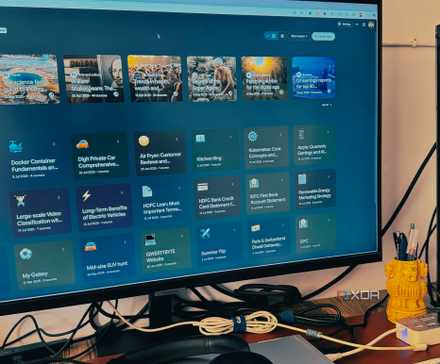
Bookmarks are one of those things that get out of hand very quickly, especially if you’re easily distractible. I never planned on the chaotic folders and layout of my Brave browser bookmarks; this is just what I ended up with by hitting Ctrl + D on every single thing that piques my interest. When I read an article that might be useful later on, or come across new design tools that I’ll never actually get around to trying, I just save it wherever and forget about it. I even use bookmarks as a way to “remember” which grocery items to order, only to never look at them again.
Given that NotebookLM has supercharged many areas of my life this year, I thought why not try to sort this mess with its help? It does a great job retrieving and summarizing information in split seconds, so it will probably be able to give me an idea of what’s actually hiding in my bookmark attic, and help me sort it for good. Here’s how it went…

One of the best off-label use cases for the AI tool

I love using tools for things that they weren’t exactly built for. For example, I store my design files in Obsidian and use Perplexity as an alternative to doomscrolling. I also recently started using NotebookLM as a personal journal. So using it to help me sort through my bookmark junk seemed like another way to squeeze the most out of it. Best case, it will transform my browsing experience; worst case, I just get a basic overview of all the links I’ve been hoarding.
NotebookLM is also specifically designed to read multiple web links at the same time, so I’d be able to process large amounts in one go. Not only will it be able to give me a summary of what I’m working with, but there’s also the context-aware conversational layer – I can actually get it to pull specific themes out of my bookmark collection and give me ideas on how to sort them in the future. It just seems like a more efficient system than manual sorting.

NotebookLM threw out all my user manuals
Consolidated tech support for all my gadgets from the source
Setting up NotebookLM as a bookmark organizer
Coming to terms with the mess I’ve created
My colleagues have had success with replacing their bookmarks with NotebookLM. However, I just wanted NotebookLM to help me settle on a bookmark folder structure and narrow down the weblinks I actually need. I still planned on using bookmarks in Brave because of the auto-prediction when I type something in the search bar. Also, I don’t recommend doing this without the NotebookLM Web Importer extension – it doesn’t add weblinks in bulk, unfortunately, but it still makes the process much faster than manual copy-pasting.
The first thing I did was create a new notebook for my bookmarks. Unfortunately, NotebookLM can’t process links inside text documents. Otherwise, this would have been much quicker – I could have simply exported my bookmarks as an HTML file, converted it to a text file, and added it as a source. But you have to add links as individual sources for NotebookLM to read them properly. This also means the source limit will eventually become an issue, but that’s why I did it in smaller batches.
I started with my Design bookmark folder, which had a bunch of other random non-design stuff in there too, of course. I opened each link and added it to my bookmarks notebook with the extension. This process alone actually helped me clean out almost half of my bookmarks – loading each link just to add it to NotebookLM gave me a quick sense of what was actually worth keeping. I have a couple of staples that didn’t need to go into NotebookLM, such as, well, NotebookLM, Gmail, Penpot, and so on.

Using NotebookLM to help me organize my bookmarks
It was just a matter of prompting NotebookLM

This part will be personal to everyone, depending on how severe your bookmark mess is. In my first batch of bookmarks demonstrated here, I didn’t need to ask for an overview since I already knew most of it was design-related. So instead, I asked NotebookLM to give me a list of everything that wasn’t design-related. It gave me a list of the outliers that weren’t supposed to be in my design bookmarks folder. Clicking on a source lets you visit the URL directly, so I could see what it actually was. I then removed those links from my design folder and added them to new, more relevant folders.

As I got deeper into it, it was harder to extract outliers – because everything was an outlier. I had links to psychology reports, cotton pants, tech trends, dinosaur documentaries, you name it. In this case, I had to prompt NotebookLM to list every source with a short description of what it was, and to sort them into categories where applicable. NotebookLM delivered. Here are some of the prompts I’ve been using:
– List all the sources (their titles) that are not related to [topics].
– Create a simple folder structure based on the topics you see here. Keep it loose, not overly detailed. Table Format.
– Give me a cleaned-up list of these links with suggested subfolders.
And below is part of my new folder structure:
- Design – All things UX and design-related
- Psy – Mental health resources
- Shop & Gear – Things I plan on purchasing
- Ent – Media links, movies, and so on
- Tools – New software I’ve been meaning to try

Finally, an organized bookmark system
I’m not going to lie, doing this does take some time. But I did it to myself, and needed to sort through my bookmarks at some point anyway. So why not use NotebookLM to make the process quicker and give me a better folder structure? Now, I can more easily spot where my bookmarks live and don’t have to dig through completely unrelated folders anymore.
