
LIVE NEWS
  • 96% of older Bitcoin being sent to exchanges is now underwater
  • Low-income parents can’t afford nutritious food kids won’t eat
  • Institutions: the tools for keeping vital relations stable amid domestic upheaval
  • Analysis: Which countries have sent the most delegates to COP31?
  • SpaceX moves Starship Flight 15 booster to launch pad for ‘squeeze test’ ahead of epic double-catch attempt (photos)
  • U.S. snubs U.N. human rights review for second consecutive year : NPR
  • Former Lilly rep claims she was fired for complaining about Mounjaro marketing
  • Poland passes sanctions bill covering crypto asset freezes
Prime Reports
  • Home
  • Popular Now
  • Crypto
  • Cybersecurity
  • Economy
  • Geopolitics
  • Global Markets
  • Politics
  • See More
    • Artificial Intelligence
    • Climate Risks
    • Defense
    • Healthcare Innovation
    • Science
    • Technology
    • World
Prime Reports
  • Home
  • Popular Now
  • Crypto
  • Cybersecurity
  • Economy
  • Geopolitics
  • Global Markets
  • Politics
  • Artificial Intelligence
  • Climate Risks
  • Defense
  • Healthcare Innovation
  • Science
  • Technology
  • World
Home»Technology»What Can You Use The HDMI Port On Your Ugreen NAS For?
Technology

What Can You Use The HDMI Port On Your Ugreen NAS For?

primereportsBy primereportsOctober 20, 2026No Comments4 Mins Read
Share Facebook Twitter Pinterest LinkedIn Tumblr Reddit Telegram Email
What Can You Use The HDMI Port On Your Ugreen NAS For?
Share
Facebook Twitter LinkedIn Pinterest Email


You can use it to watch media files on the device, but you’ll need to use your phone as a remote.
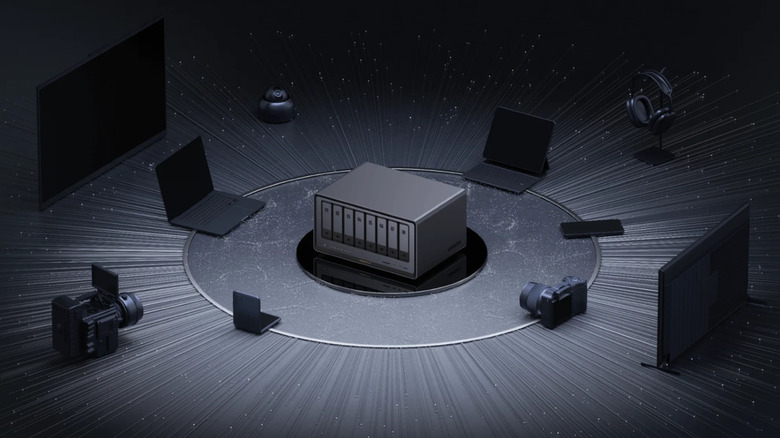

Product image of Ugreen NAS surrounded by laptops and cameras.
Ugreen

Setting up a network-attached storage server is a great way to access your files remotely without paying cloud storage fees. Among the most popular are Ugreen NAS units, which include an HDMI port that some users have found a bit baffling. Since the whole point of a NAS is to connect to them through the internet, it might seem a little strange to set one up and discover an HDMI port on the back, but it actually serves a few helpful functions.

While any NAS server with an HDMI port offers broadly the same functions, the specifics for how to use them might be a little different. Ugreen NAS servers come with a few quirks of their own that can make using their HDMI ports a bit confusing, but they’re easy to navigate once you know what you’re doing. Getting to know the tricks for how to use your NAS’ HDMI port before you need them is a good idea because it’s useful for more than just accessing your files.

Connecting the NAS to an external monitor

The most straightforward use of a Ugreen NAS’ HDMI port is to watch media files stored on the device. It’s more common to stream from a NAS to a smart TV or a device like a Roku Streaming Stick, but using the HDMI port means you can get by without either of those options, or even connect the NAS to a PC monitor or projector. Unfortunately, it’s not quite as easy as connecting the NAS like you would any other device.

When you connect a Ugreen NAS to your screen via HDMI, it should display a notice telling you that you need to use the Ugreen phone app to actually play your media. On the app, you’ll see an option to cast your media to the screen using the HDMI cable. At this point, you can use the app as a remote to control playback. It’s a bit of a hassle to have to use an app when you’re already connected via HDMI, but since there’s no physical remote for your NAS, it’s the only way to actually navigate and play from your library.

Accessing the BIOS and terminal

The HDMI port also enables a few more advanced features. If you have both a screen and a keyboard connected, you’ll be able to access both the device’s BIOS and a terminal. You might never have to mess with either of these options, but they’re necessary if you want to replace the server’s operating system, troubleshoot boot issues or change advanced settings without a remote SSH connection.

To access the BIOS, boot up your NAS with a screen connected. As soon as startup begins, repeatedly press the Ctrl and F12 keys together and you should enter the BIOS setup screen. From here, you can navigate the BIOS screen using the keyboard. If you plan to change BIOS settings, you should start by searching for an option under the Advanced tab called Watchdog Settings and disable Watch Dog Control. With this enabled, the NAS will reboot after a set amount of time.

While it’s not officially documented, Ugreen NAS users online have reported that it’s possible to access the server’s terminal via HDMI as well. With a screen and keyboard connected, press Ctrl Alt F1, which should bring up the terminal, though different models of NAS may use different function keys. By default, the way to access a Ugreen NAS terminal is through an SSH client on another computer connected to your local network, so accessing the terminal directly from the NAS can be a simpler option. Either way you access it, you should only change settings in the terminal if you’re sure you know what you’re doing, as the advanced settings there can cause a lot of hard-to-fix problems if you’re not careful.

Share. Facebook Twitter Pinterest LinkedIn Tumblr Email
Previous ArticleAustralian prime minister says lawmaker critically injured by car is ‘no accident’ : NPR
Next Article Trump orders creation of NIH initiative on women’s health
primereports
  • Website

Related Posts

Technology

Samsung has big plans for the Galaxy S27 Pro and Ultra, but it’s bad news for the base models

November 10, 2026
Technology

New Democratic Congress will likely strip the gilding from Trump’s Golden Dome

November 9, 2026
Technology

The UV-tracking Gem made me rethink how sunlight affects my health, not just my appearance

November 8, 2026
Add A Comment
Leave A Reply Cancel Reply

Top Posts

Threat of further violence looms after Mexican cartel rampage

February 25, 2026116 Views

‘Two-sided risk’ Medicare Advantage plans improve patient outcomes

February 24, 202673 Views

Inside the global business of ‘three-parent IVF’ | A STAT investigation

November 2, 202629 Views
Stay In Touch
  • Facebook
  • YouTube
  • TikTok
  • WhatsApp
  • Twitter
  • Instagram
Latest Reviews

Subscribe to Updates

Get the latest tech news from FooBar about tech, design and biz.

PrimeReports.org
Independent global news, analysis & insights.

PrimeReports.org brings you in-depth coverage of geopolitics, markets, technology and risk – with context that helps you understand what really matters.

Editorially independent · Opinions are those of the authors and not investment advice.
Facebook X (Twitter) LinkedIn YouTube
Key Sections
  • World
  • Crypto
  • Cybersecurity
  • Geopolitics
  • Global Markets
  • Artificial Intelligence
All Categories
  • Artificial Intelligence
  • Climate Risks
  • Crypto
  • Cybersecurity
  • Defense
  • Economy
  • Geopolitics
  • Global Markets
  • Healthcare Innovation
  • Politics
  • Popular Now
  • Science
  • Technology
  • World
  • About Us
  • Contact Us
  • Privacy Policy
  • Terms & Conditions
  • Disclaimer
  • Cookie Policy
  • DMCA / Copyright Notice
  • Editorial Policy

Sign up for Prime Reports Briefing – essential stories and analysis in your inbox.

By subscribing you agree to our Privacy Policy. You can opt out anytime.
Latest Stories
  • 96% of older Bitcoin being sent to exchanges is now underwater
  • Low-income parents can’t afford nutritious food kids won’t eat
  • Institutions: the tools for keeping vital relations stable amid domestic upheaval
© 2026 PrimeReports.org. All rights reserved.
Privacy Terms Contact

Type above and press Enter to search. Press Esc to cancel.